Microsoft Workloads on AWS
How a Customer Upgraded over 2,000 Microsoft Windows Server 2016 to 2025 on Amazon EC2
With Microsoft Windows Server 2016 reaching end of support in January 2027, organizations running workloads on Amazon Elastic Compute Cloud (Amazon EC2) need to plan their migration strategy now. Recently, a large financial services industry (FSI) customer approached Amazon Web Services (AWS) with a significant challenge: they needed to upgrade over 2,000 Amazon EC2 instances running Windows Server 2016 to Windows Server 2025 and were looking for guidance on the most efficient and reliable path forward.
This post walks you through three upgrade approaches and explains why our customer chose the in-place upgrade path. It also introduces you to the AWS Systems Manager (SSM) automation document that AWS provided to help execute the upgrade at scale.
The challenge
The customer’s environment consisted of more than 2,000 Amazon EC2 instances running Windows Server 2016 across multiple accounts and regions. These instances supported a range of critical workloads, and the customer had strict requirements around minimizing downtime, preserving network configurations to avoid firewall rule changes, and maintaining compliance with Microsoft licensing terms. They needed a repeatable, automated approach that runs safely across their entire Amazon EC2 fleet. The AWS team evaluated the customer’s environment and presented three upgrade options.
Option 1: Fresh instance with application migration
The first option was to launch new Amazon EC2 instances running Windows Server 2025 and migrate applications and data from the existing Windows Server 2016 instances. This approach provides a clean slate — Amazon’s Windows Server 2025 AMIs ship with the latest patches, drivers, and EC2Launch v2 pre-installed.
Advantages
- Clean installation with no legacy configurations carried over.
- Latest drivers and patches pre-installed.
- Lower risk of OS-level compatibility issues that could arise from an in-place upgrade.
- Best suited for environments with automated application deployment as the entire migration can be scripted end to end.
Considerations
- Requires handling hostname and IP address changes during the cutover.
- Application reconfiguration and data migration add complexity.
- Time-intensive for environments with tightly coupled configurations.
- At the customer’s scale of over 2,000 instances, the migration effort would be substantial.
Option 2: Clone and upgrade
The second option was to create a clone of each existing instance and perform an in-place upgrade on the clone. The original server remains untouched until the upgraded clone is validated and ready for cutover.
Advantages
- The original server remains untouched during the upgrade process.
- Ability to test and validate the upgraded clone before switching over.
- Rollback is possible in case of issues.
Considerations
- Requires managing data synchronization between the source instance and the upgraded clone.
- Hostname and IP address changes still need to be handled during the swap.
- Running two instances per server during the migration period doubles Amazon EC2 costs temporarily.
- At scale, coordinating the delta sync across more than 2,000 instances adds operational overhead.
AWS offers the AWS Systems Manager Automation runbook AWSEC2-CloneInstanceAndUpgradeWindows which creates an Amazon Machine Image (AMI) from the source instance and then upgrades the AMI.
Option 3: In-place upgrade
The third option was to perform the in-place upgrade directly on the running instance. This approach eliminates the need for data synchronization and preserves the instance’s IP address and hostname. AWS recommended creating a backup of each instance before the upgrade to enable rollback in case of an issue. You can create backups by taking EBS snapshots of the root volume, using AWS Backup, or leveraging third-party backup tools.
Advantages
- No data synchronization required between source and target.
- Preserves IP address, hostname, and existing network configuration.
- Straightforward approach for single-server and fleet-wide scenarios.
- Rollback is possible by restoring from the pre-upgrade EBS snapshot.
Considerations
- Requires a downtime window of 1–2 hours per instance depending on configuration.
- The original instance is modified in place.
- Rollback requires restoring from the backup.
- Not suitable for all workloads — for example, instances managed by AWS Auto Scaling groups should not be upgraded in place. Additionally, certain Windows Server roles and features have specific upgrade or migration paths; refer to the Microsoft guide on upgrading and migrating roles and features for details.
Why our customer chose option 3
After evaluating these three approaches, the customer chose Option 3 — the in-place upgrade. The deciding factors were:
- Preservation of network identity. In the customer’s environment, IP addresses and hostnames were embedded in firewall rules, DNS records, and application configurations.
- No data synchronization overhead. With over 2,000 instances, managing delta syncs between source and clone (Option 2) or full application migrations (Option 1) would have introduced significant operational risk and complexity.
- Repeatability and automation potential. The in-place upgrade process follows a consistent pattern that lends itself well to automation — a critical requirement at this scale.
- Acceptable downtime window. The customer was able to schedule 1–2 hour maintenance windows per instance, making the downtime trade-off acceptable.
Critical prerequisites
Before performing the in-place upgrade, the AWS team worked with the customer to address a set of prerequisites across their fleet.
Verify and Convert the Licensing Model
This was the most critical prerequisite. Each Amazon EC2 instance carries an “Usage Operation” billing field that defines its licensing model. Due to Microsoft terms and conditions, Windows Server 2022 and Windows Server 2025 support the License Included (LI) model only.
The customer leveraged the AWS blog Collecting platform and billing details for Microsoft licensing on AWS to collect the required billing information. Then, used AWS License Manager to perform the conversion prior to the upgrade.
Visit AWS for Microsoft workloads FAQ for more information.
Update EC2Launch from v1 to v2
Windows Server 2016 ships with EC2Launch v1. This service handles instance initialization tasks, including network configuration, Windows activation, and custom script execution. EC2Launch v1 is not supported on Windows Server 2025, and it needs to be updated to EC2Launch v2 before upgrading. Refer to our official documentation or check out this blog for more information.
Update Drivers (Optional)
While optional, updating the ENA (Elastic Network Adapter) and EBS (Elastic Block Store) drivers before the upgrade is a best practice. Both drivers can be upgraded at scale using AWS Systems Manager Distributor or using PowerShell.
Create EBS Snapshot Backups (Optional)
Before each upgrade, the customer created a backup of each Amazon EC2 instance using AWS Backup. This provided a reliable rollback path in case any instance encountered issues during the upgrade process.
Automation with AWS Systems Manager
The AWS documentation outlines the manual steps on how to perform the in-place upgrade. To help the customer execute the upgrade across their fleet, the AWS team provided a custom SSM automation document, EC2-InPlaceUpgradeToWindows2025, that automates the entire in-place upgrade process. It handles:
- Validation — Confirms the instance is running a supported source OS (Windows Server 2012 R2, 2016, 2019, or 2022), verifies sufficient disk space (minimum 20GB free), and checks that the root volume is EBS-backed.
- Nitro instance check – Windows Server 2025 does not support Xen-based instances.
- BYOL detection — If the automation detects a Windows Server BYOL instance, it logs a warning, exits and prompts the operator to convert the license first.
- Pre-upgrade backup — Optionally creates a VSS-consistent snapshot of all attached EBS volumes before the upgrade begins.
- Installation media handling — Automatically discovers the Windows Server 2025 installation media snapshot, creates a temporary EBS volume from it, and attaches it to the target instance.
- In-place upgrade execution — Runs the Windows Server setup in quiet mode, initiating the upgrade and managing the required reboots.
- Post-upgrade verification — Waits for the instance to come back online, verifies that the OS is now Windows Server 2025, and confirms that the SSM agent has reconnected.
- Post-upgrade housekeeping — Performs the following cleanup and configuration tasks:
-
- Detaches and deletes the temporary media volume
- Updates the SSM agent
- Activates the Windows license via AWSSupport-ActivateWindowsWithAmazonLicense runbook
- Runs EC2Launch migration
- Optionally installs critical and security Windows updates.
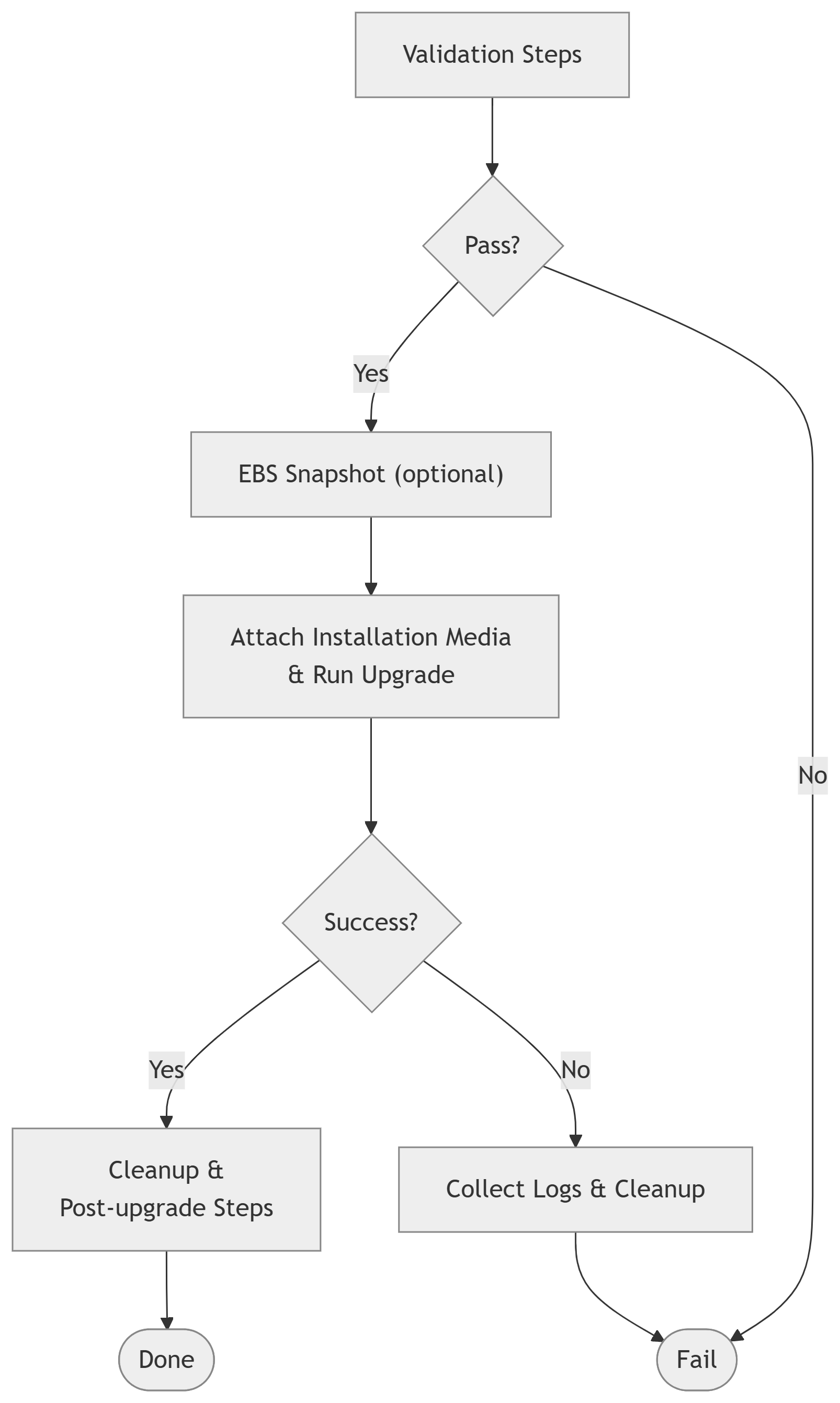
Figure 1 – Automation flow
This allowed our customer to run the upgrade in a controlled, repeatable manner — targeting batches of instances at a time and monitoring progress through the Systems Manager console.
Addressing Microsoft KMS activation challenges
After converting from BYOL to License Included, some instances may encounter Microsoft Key Management Services (KMS) activation issues where Windows still points to a custom KMS server instead of the AWS KMS. To resolve this, follow the instructions in the AWS Knowledge Center article on Windows activation failures. If the activation issues persist, open a case with AWS Support.
Best practices and recommendations
Test before production. The customer validated the upgrade process in a dev/test environment first. This helped identify application compatibility issues, estimate accurate downtime windows, and build confidence in the process before rolling it out to production.
Plan for downtime. In-place upgrades typically take 1–2 hours. Coordinate maintenance windows with stakeholders and communicate expected downtime clearly.
Minimum instance size recommendation. We recommend performing an operating system upgrade on instances with at least 2 vCPUs and 4GB of RAM.
Have a rollback plan. Always maintain EBS snapshots taken immediately before the upgrade. If issues arise (no login screen, no network connectivity, etc.), you can restore from the snapshot or contact AWS Support.
Monitor licensing compliance continuously. Consider implementing ongoing compliance monitoring/reporting.
Use the Amazon EC2 console screenshot feature. During the upgrade, you can use the “Capture screenshot” feature in the Amazon EC2 console to check the instance’s display output. This is useful since remote desktop access is unavailable while the upgrade is in progress.
Conclusion
When our FSI customer approached AWS with the challenge of upgrading over 2,000 Windows Server 2016 instances, the AWS team worked closely with them to evaluate their options and identify the approach that best fits their operational requirements. The In-Place Upgrade (Option 3 above), combined with the custom SSM automation document, gave them a repeatable, scalable path to Windows Server 2025 — one that preserved their network configurations, minimized operational complexity, and provided a clear rollback strategy.If your organization is facing a similar challenge, start by inventorying your Windows Server 2016 instances and checking their Usage Operation codes. This will give you a clear picture of the scope and help you plan your upgrade timeline well ahead of the January 2027 end-of-support deadline.
Finally, for additional tips on migration options that are right for you – SQL Server 2016 end of support is coming on July 14, 2026. Check out our blog post on how to automate in-place upgrade of SQL Server on Amazon EC2.