AWS Big Data Blog
Migrating TLS Clients managed by third-party Certificate Authorities from self-managed Apache Kafka to Amazon MSK
Amazon Managed Streaming for Apache Kafka (Amazon MSK) is a fully managed streaming data service that handles Apache Kafka infrastructure and operations, so developers and DevOps managers can run Apache Kafka applications on AWS. Migrating to Amazon MSK requires no application code changes because Amazon MSK uses fully open source Apache Kafka, allowing existing applications and tools to work seamlessly. Amazon MSK with Express brokers streamlines Kafka management by providing up to 3x more throughput, 20x faster scaling, and 180x faster recovery with virtually unlimited storage, delivering resiliency and elasticity for mission-critical workloads.
Amazon MSK supports multiple authentication methods to secure client connections to Kafka clusters. These methods include:
- IAM authentication for identity-based access control using AWS Identity and Access Management (IAM) policies.
- Mutual TLS (mTLS) authentication where both clients and brokers authenticate each other using X.509 certificates.
- SASL/SCRAM authentication for username and password-based authentication stored in AWS Secrets Manager.
When customers manage their own Kafka clusters and adopt mTLS, they typically rely on a third-party managed certificate authority (CA) to sign and verify both client and server certificates. This establishes a trust relationship where the CA acts as the trusted intermediary that validates the identity of both parties in the communication. When customers migrate their workloads to Amazon MSK, they must make sure that client certificates are signed by a CA that’s recognized and trusted by the MSK cluster. Amazon MSK recommends customers to use AWS Private Certificate Authority to create a private CA within AWS that MSK trusts. The migration path typically requires customers to either:
- Generate new client certificates signed by an AWS Private CA that Amazon MSK recognizes, or
- Establish a certificate chain where their existing third-party CA is subordinate to or trusted by an AWS-managed CA
In this post, we provide an approach to reuse your existing client certificates without reissuing them through AWS Certificate Manager (ACM) Private Certificate Authority. This solution enables an accelerated migration path by using your current third-party CA infrastructure. This removes the complexity and operational overhead of certificate re-issuance while maintaining the security posture that you’ve established with your existing mTLS implementation.
Solution overview
This approach involves four key steps to reuse your existing client certificates when migrating to Amazon MSK:
1. Create an Intermediate Certificate Using Your Third-Party CA
First, you generate an intermediate certificate authority (CA) certificate using your existing third-party CA infrastructure. This intermediate certificate acts as a bridge between your current certificate management system and AWS.
2. Import the Intermediate Certificate into AWS Certificate Manager as a Private CA
Next, you import this intermediate certificate into AWS Certificate Manager (ACM) as a Private Certificate Authority (PCA). This step establishes the intermediate CA within the AWS environment, making it recognizable to AWS services.
3. Integrate Amazon MSK with the PCA created from your Intermediate Certificate
You then configure your Amazon MSK cluster to use the ACM Private CA that contains your imported intermediate certificate. This integration enables Amazon MSK to recognize and trust certificates signed by your certificate authority.
4. Establish trust through common Certificate Authority
This approach works because both the AWS Private CA and your existing client certificates share the same root of trust—they’re both signed by your third-party CA. When Amazon MSK validates client certificates, it can trace the certificate chain back through the intermediate certificate in AWS Private CA to your trusted third-party CA, establishing a complete chain of trust without requiring certificate reissuance.This solution maintains your existing security architecture while enabling seamless migration to Amazon MSK, so your clients can continue using their current certificates without interruption.
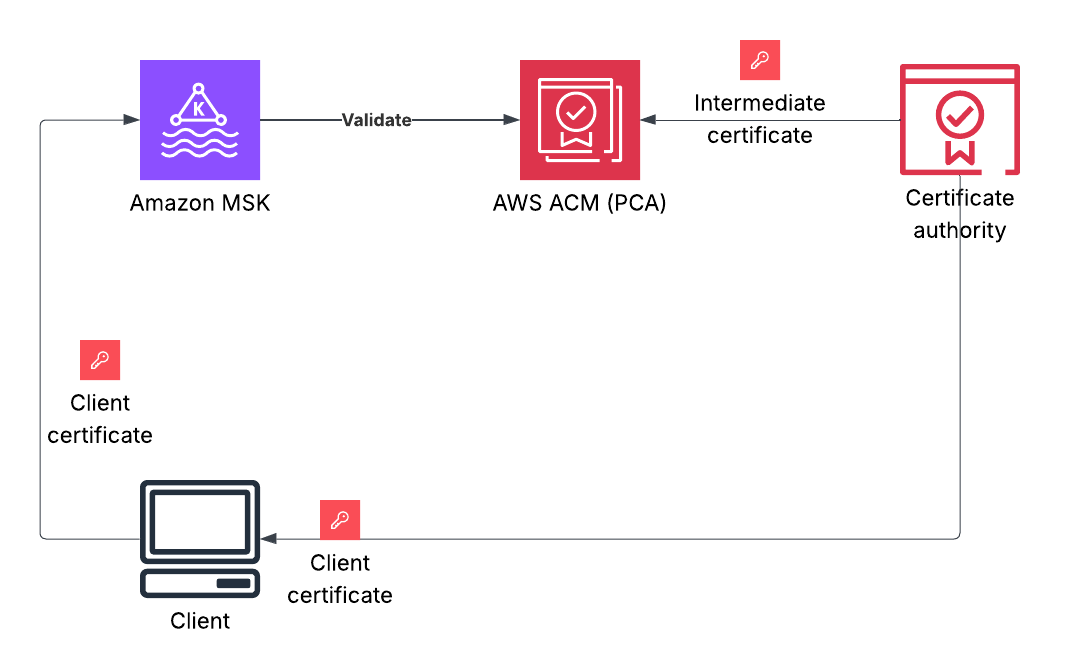
Figure 1: Architecture diagram showing the integration of third-party Certificate Authority with Amazon MSK through AWS Certificate Manager Private CA
Implementation steps
In real-world scenarios, you already have a certificate authority that has issued certificates for your clients. For the purpose of this post, we use a code sample to create a self-signed certificate authority (using OpenSSL) to demonstrate the implementation steps. If you already have an existing certificate authority, you don’t need to create a root CA. You can generate an intermediate CA (Step 2) using your third-party CA and continue following the steps from where you import the intermediate CA certificate into AWS ACM as a Private Certificate Authority.
Step 1: Create a root Certificate Authority using OpenSSL
Cloning the repository
To clone the repository, complete the following steps:
- Clone the repository using the following command:
git clone https://github.com/aws-samples/msk-third-party-mtls
- Change to the repository’s root directory:
cd ./msk-third-party-mtls/openssl
- Run the setup script:
make the script executable first:
You will be prompted to set up a password for the private key and the certificate. Here is an example of an output
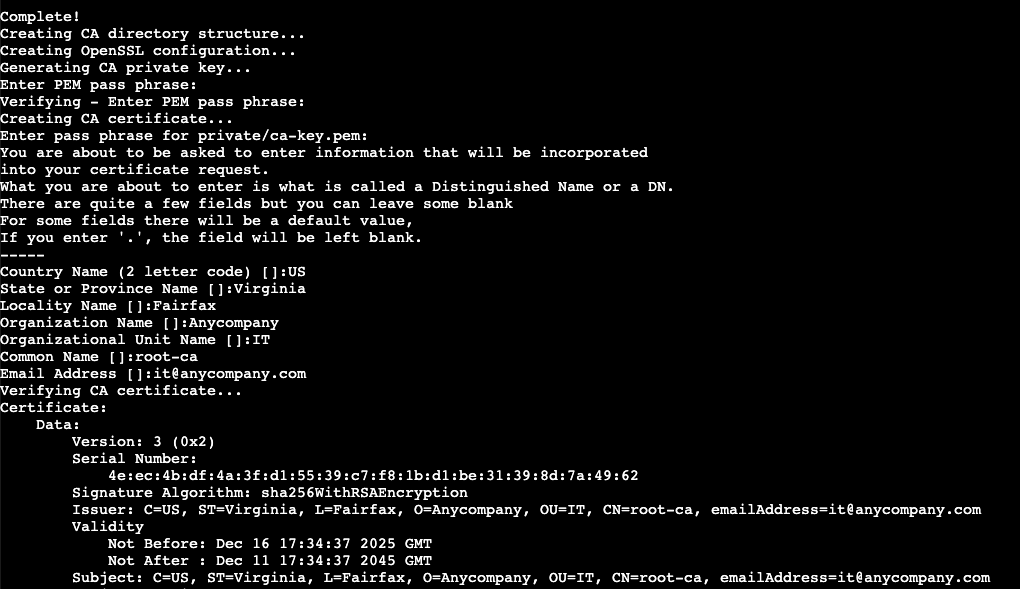
Step 2: Create an intermediate CA for AWS ACM
- In the AWS Private CA console, create a subordinate CA.
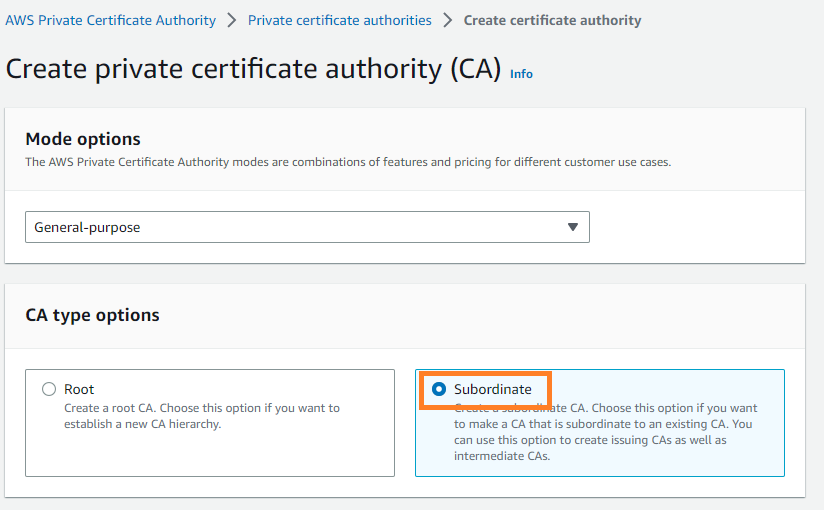
- Enter distinguished name information matching your organization, Key algorithm and Create CA.
- From the Actions menu, select Install CA certificate.
- Download the Certificate Signing Request (CSR) file provided by AWS Private CA.
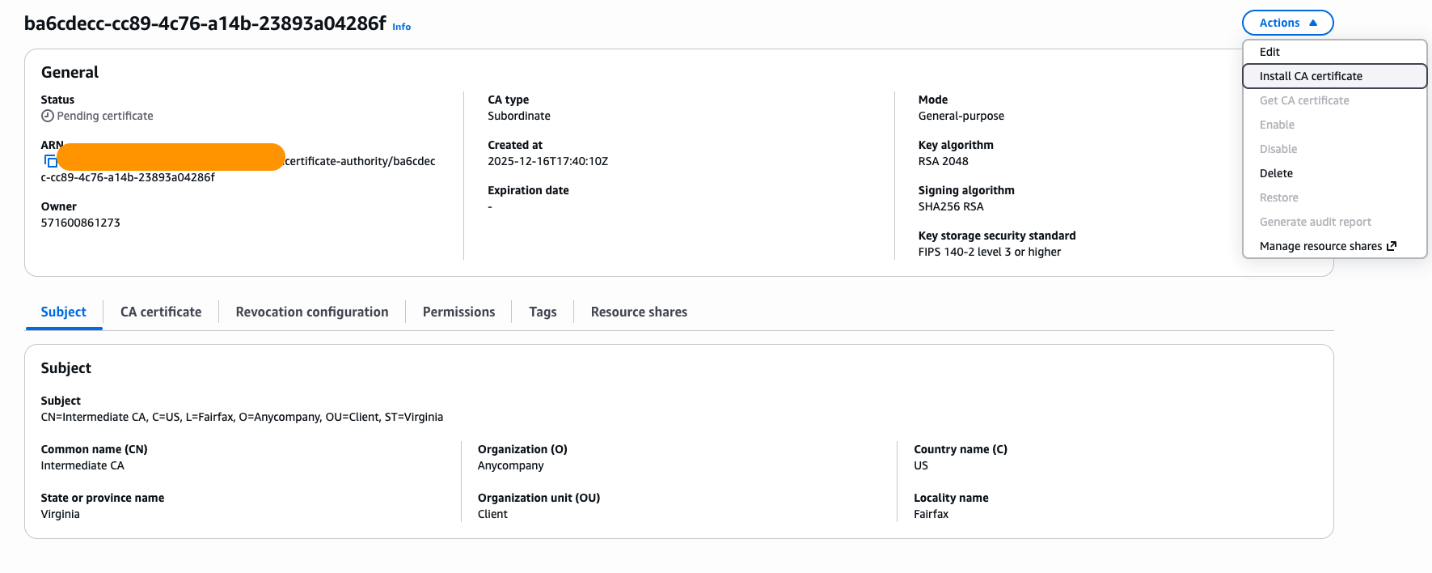
- Download the CSR file to your local directory (“certs”) as “CSR.pem”.
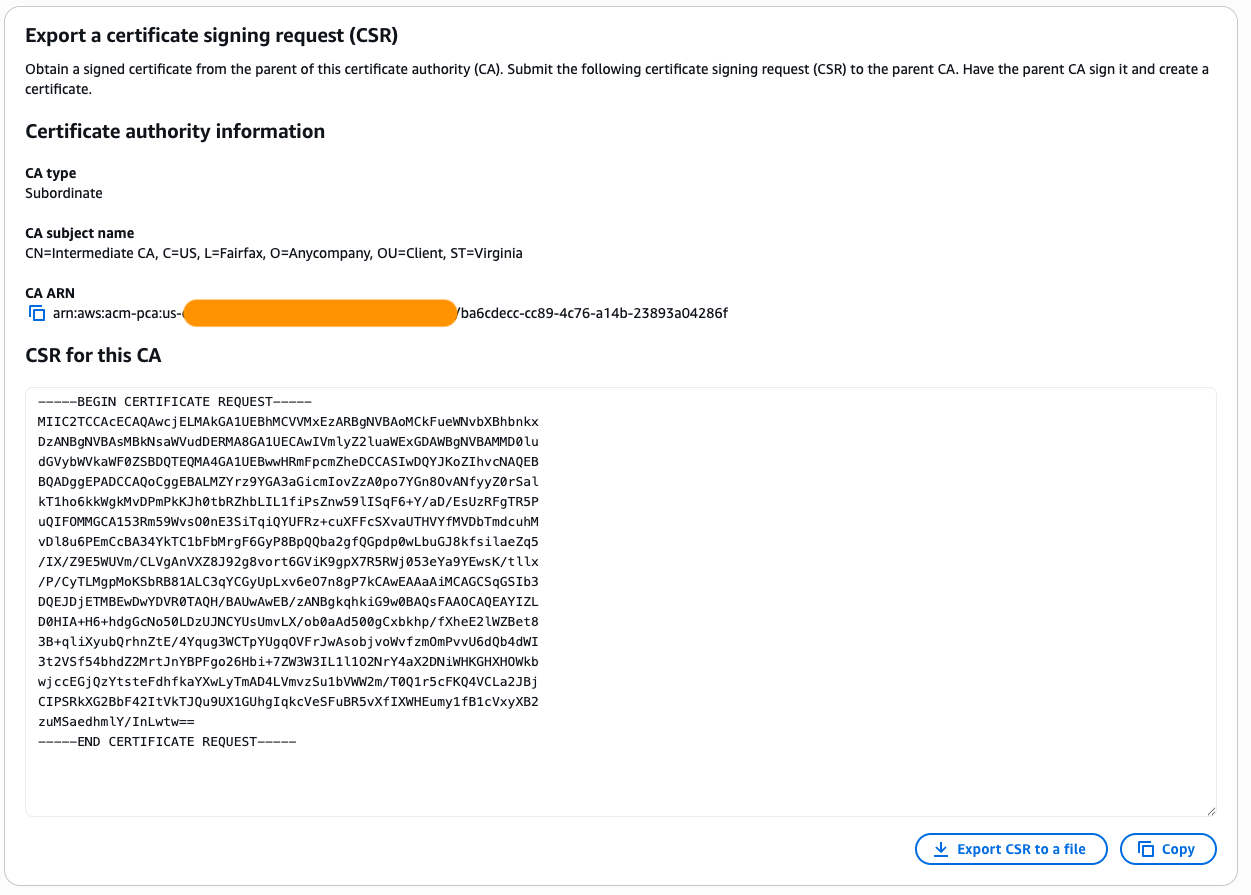
- Sign the ACM PCA issued CSR with your Root CA using the provided
./sign-acm-ca.shin the code example.
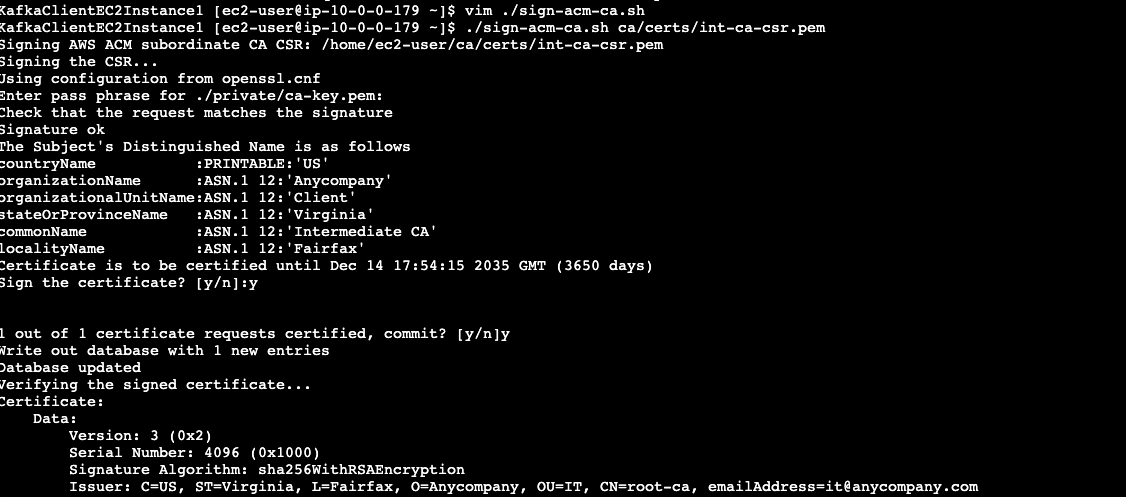
Note: AWS Private CA retains the private key internally. You only sign their CSR and import the resulting certificate back to the AWS Private CA.
Step 3: Import signed certificate to AWS ACM Private CA
- Go back to the AWS ACM console.
- Select the CA that you created and select Install CA certificate.
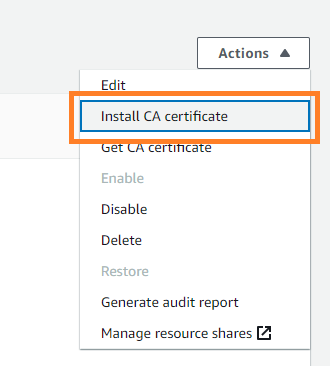
- Select External private CA as CA type.

Importing the certificate into AWS Certificate Manager
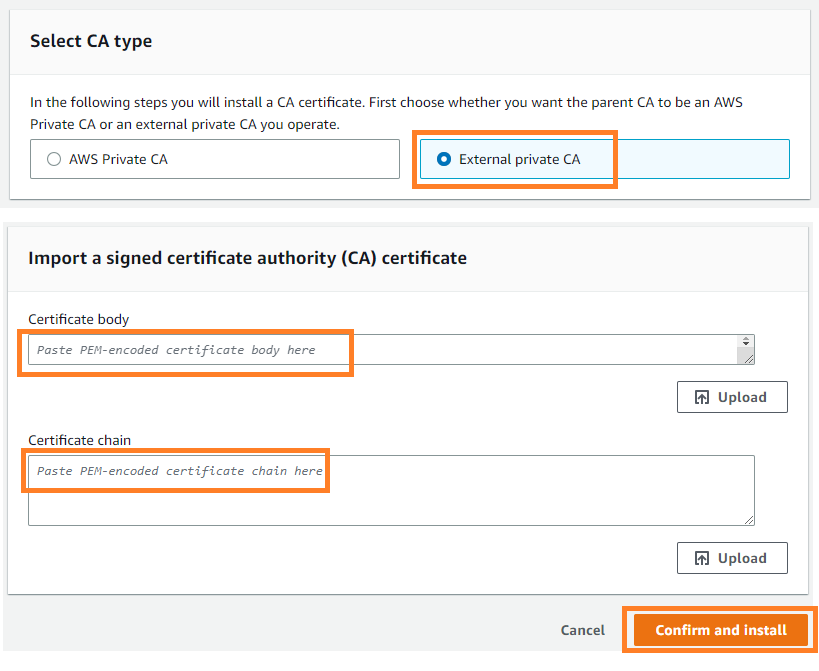
Open both files in a text editor:
acm-subordinate-ca-cert.pemacm-ca-chain.pem
Do the following in the Certificate body field in AWS ACM:
- Copy the entire content from the
acm-subordinate-ca-cert.pemfile and paste it into the text box. - Open the
acm-ca-chain.pemfile. - This file contains one certificate (The root CA certificate)
- Do the following in the Certificate chain field in AWS ACM:
- Copy the root CA certificate portion and paste it into the text box
Important: The certificate chain shouldn’t include the subordinate CA certificate itself—only the certificates above it in the chain (the root CA).
- Choose Confirm and install to complete the process.
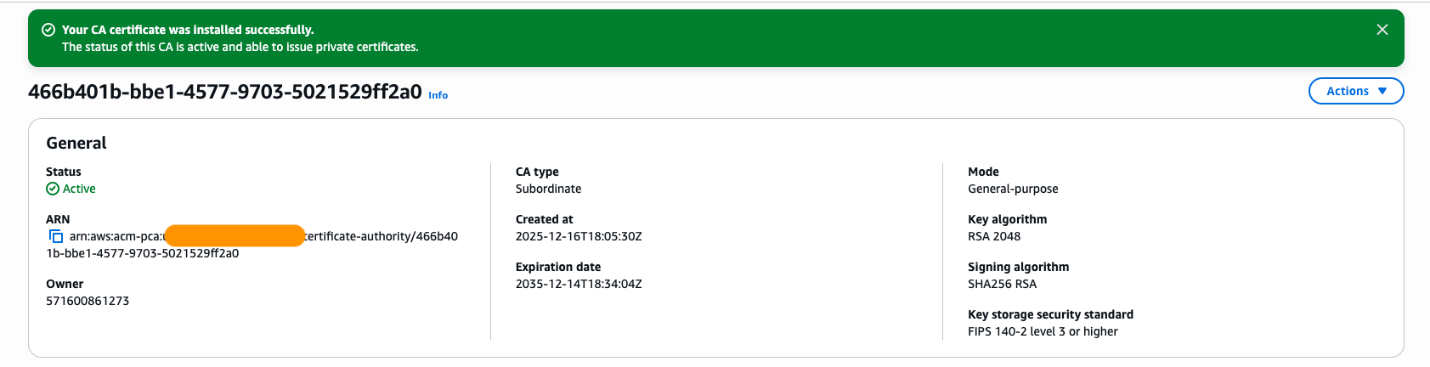
You should see the AWS Private CA turns into active state.
Step 4: Configure your MSK cluster for Mutual TLS authentication
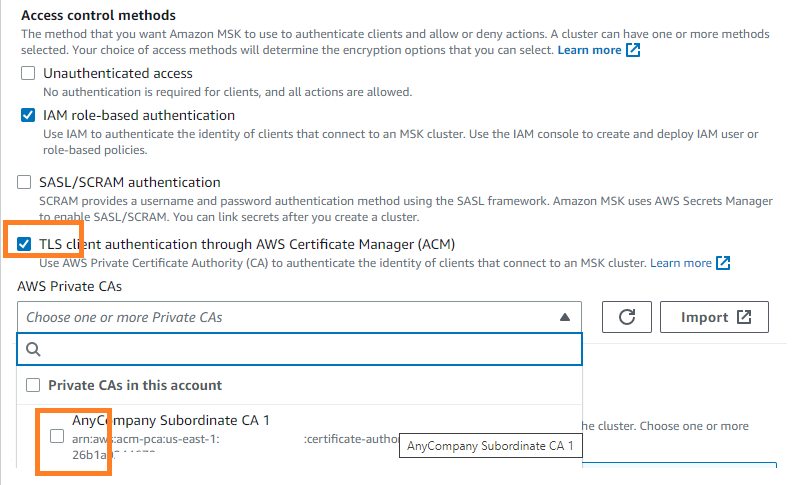
- Select your MSK cluster, go to Properties and edit the Security settings.
- Select TLS client authentication through AWS Certificate Manager (ACM) as the access control method and choose the Subordinate CA that you created earlier. Then choose Save changes.
Step 5: Test your client
Run the certificate generation script
Execute the following command, replacing <client-name> with a descriptive name for your client (this will be used in the certificate filename):./generate-client-cert.sh <client-name>
Example:
./generate-client-cert.sh kafka-admin
Enter distinguished name information
When prompted, enter the distinguished name (DN) options. These should match your root CA settings except for the Common Name (CN):
- Country (C): Match your root CA (for example, US)
- State (ST): Match your root CA (for example, State)
- Organization (O): Match your root CA (for example, Anycompany)
- Organizational Unit (OU): Match your root CA (for example, IT)
- Common Name (CN): Use a client-specific identifier (for example, kafka-admin or client)
Verify certificate files
After the certificate is generated, verify that the files were created successfully by running:ls ~/ca/certsYou should see files with your client name, including:
<client-name>.key(private key)<client-name>.crt(certificate)<client-name>.p12(PKCS12 keystore)
Create Kafka client properties file
Create a new properties file for your Kafka client (for example, kafka-tls-client.properties) based on the provided kafka-admin-ssl.properties example file. Update the file paths to reference your newly generated client certificate files.
Example configuration:
Step 6: Testing the Kafka client connection
To test the Kafka client connection, do the following.
Set environment variables
First, set the required environment variables for your Kafka installation and MSK cluster:
Note: Replace <your-msk-bootstrap-servers> with your actual Amazon MSK cluster bootstrap server endpoints (for example, b-1.mycluster.abc123.kafka.us-east-1.amazonaws.com:9094,b-2.mycluster.abc123.kafka.us-east-1.amazonaws.com:9094)
Run the Kafka list topics command
Execute the following command to verify that your client can successfully connect to Amazon MSK using mutual TLS authentication:
What this test does:
- Connects to your Amazon MSK cluster using the TLS configuration in your properties file
- Authenticates using your client certificate
- Lists all available Kafka topics
Expected result: If successful, you should see a list of topics in your Kafka cluster (or an empty list if no topics exist yet).

If the connection fails, check:
- Your bootstrap server endpoints are correct
- You imported the private key, and certificate chain to your keystore
- The paths in your properties file point to the correct keystore and truststore files
- Your client certificate was properly imported
- Your Amazon MSK cluster security settings allow TLS client authentication
- Your Amazon MSK cluster references correct PCA ARN in AWS ACM
Troubleshooting
Enable debug mode to verify certificate handshake
To troubleshoot certificate issues and verify which certificates are involved in the TLS handshake, enable Java SSL debug mode:
What this debug mode shows:
- The complete TLS handshake process
- Which certificates are being presented by both client and server
- The certificate chain validation steps
- Which certificate from your truststore is being used for authentication
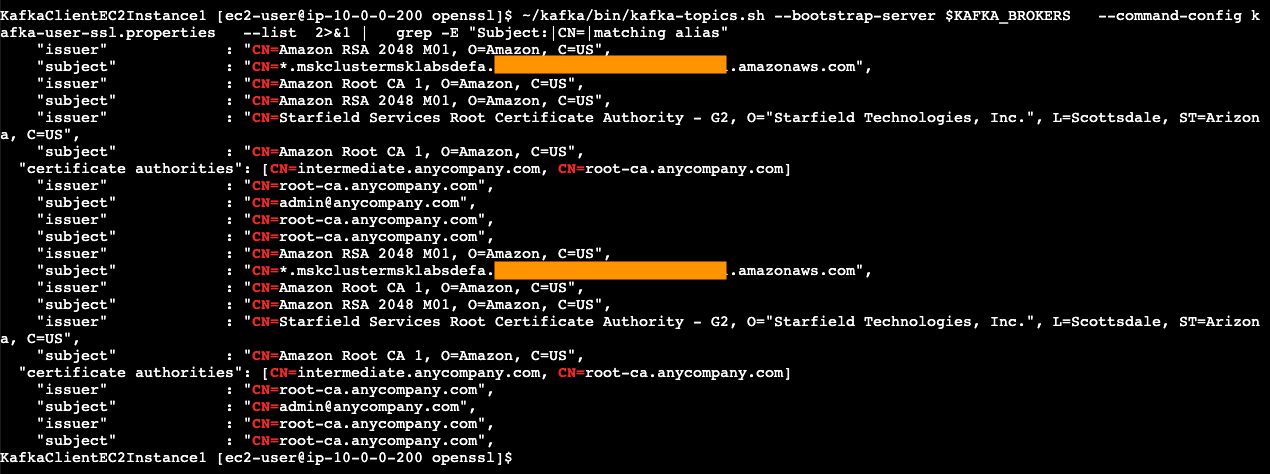
When this is helpful:
- When you have multiple certificates in your truststore and need to identify which one is being used
- When troubleshooting certificate chain validation issues
- When verifying that the correct client certificate is being presented during authentication
- When diagnosing certificate mismatch or trust issues
Reading the debug output:
Look for lines containing:
- ***Certificate chain – Shows the certificates being presented
- Found trusted certificate – Indicates which certificate in your truststore matched
- Cert path validation – Shows the certificate chain validation process
To disable debug mode after troubleshooting, simply unset the environment variable:
unset KAFKA_OPTS
Conclusion
This post presents a solution for migrating TLS clients from self-managed Apache Kafka to Amazon MSK while reusing existing third-party CA-signed certificates. The approach removes the need for certificate reissuance by instead creating an intermediate CA from the existing third-party CA, importing it into AWS Certificate Manager as a Private CA, and integrating it with Amazon MSK. This maintains the established chain of trust through the common certificate authority, enabling seamless migration without operational disruption while preserving the existing security architecture and mTLS implementation. To read more about the Amazon MSK security model, see Security in Amazon MSK.